Project Contract Templates
This page will provide information and instructions for managing project-level contract templates in Site Specs.
Overview
Site Specs allows companies to develop their own custom contract template library where they can templatize and manage their company agreements including Subcontracts, Supplier Agreements, Trucking Agreements, Master Vendor Service Agreements, and any other type of agreement a company needs. For information on Company Contract Templates please see Company Contract Templates.
These company contract templates are then deployed to projects where they are further customized for the specific project before being used to generate vendor-specific agreements for signature.
Below we will discuss creating Project Contract Templates from Company Contract Templates.
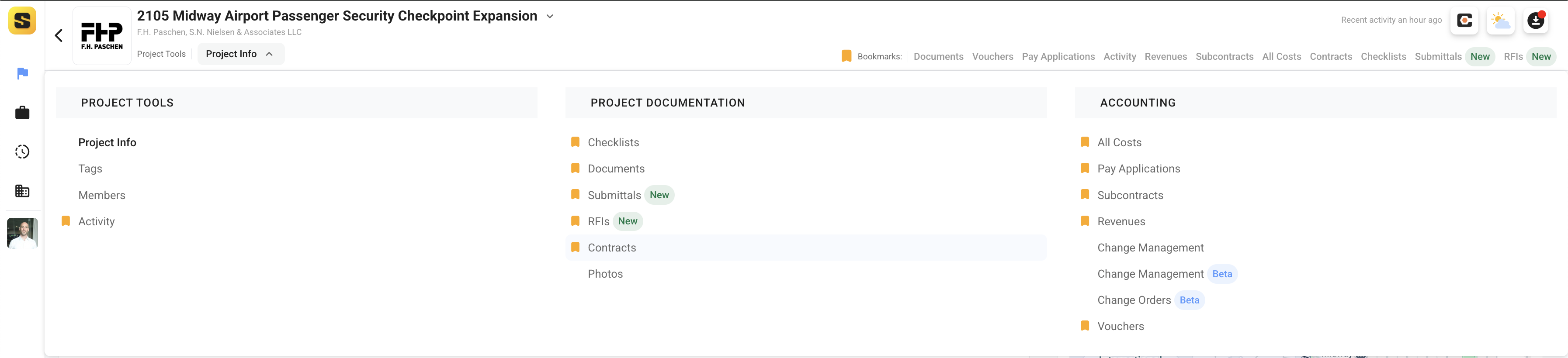
The project contract templates are managed in each individual project in the 'Contract' tab under Project Documentation.
On a project's contract tab, users will see a table of all master contracts issued to vendors on the project.
NOTE: 'Master' is used to describe the latest version of the Subcontract/Supplier Agreement. This is for identifying the governing agreement version when several versions of a subcontract have been created. Site Specs allows users to maintain a record of all pervious agreement drafts in order to maintain a complete history of how an executed contract was reached.
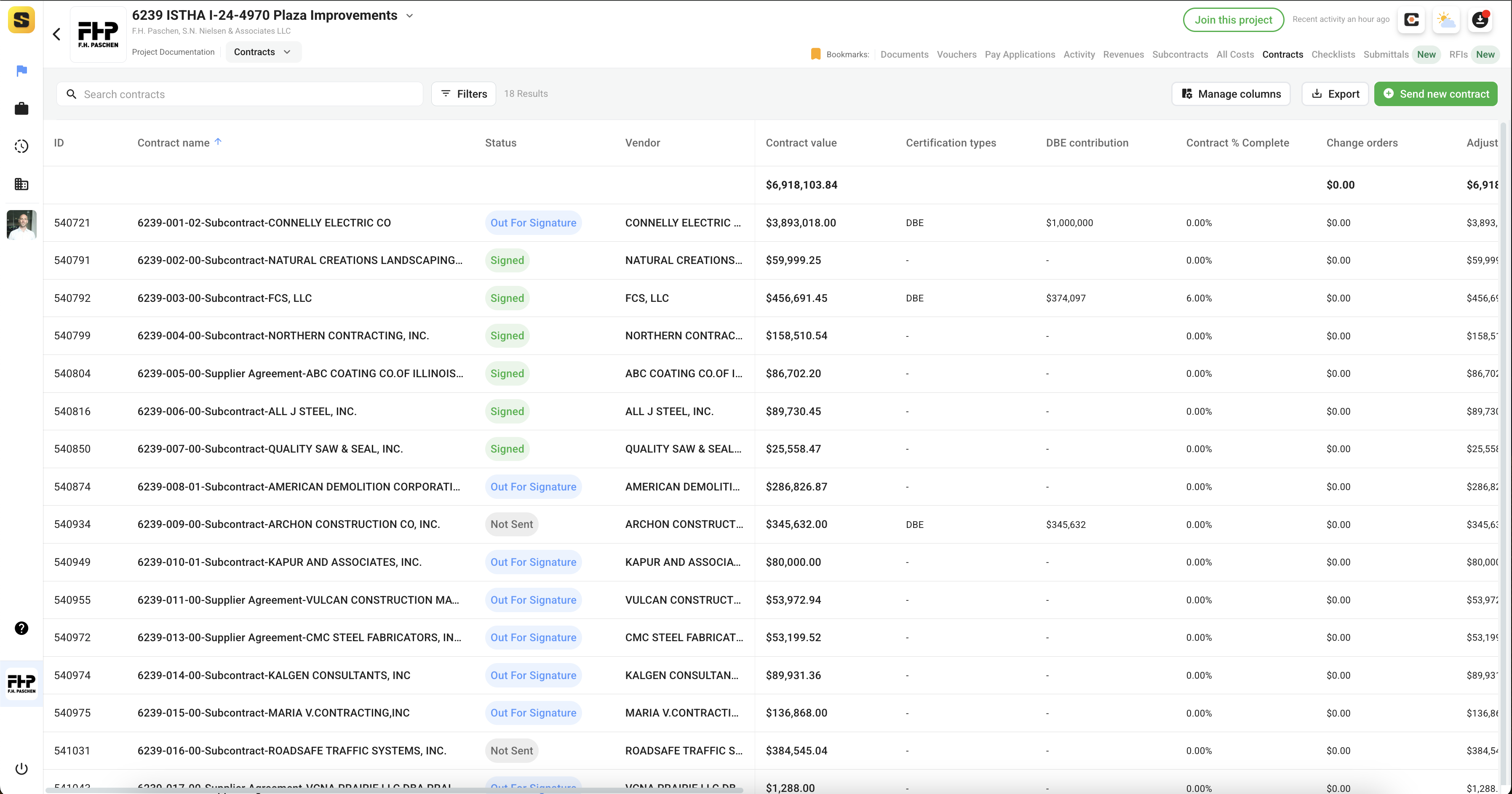
Users can search vendors agreements, filter, manage and customize the columns they see in the table, export the table, and send new contracts for signature.

Below we will outline how to add and send contracts for signature using our Adobe Sign API. We will also explain how users can maintain their contracts log.
Steps
Sending a Contract Agreement
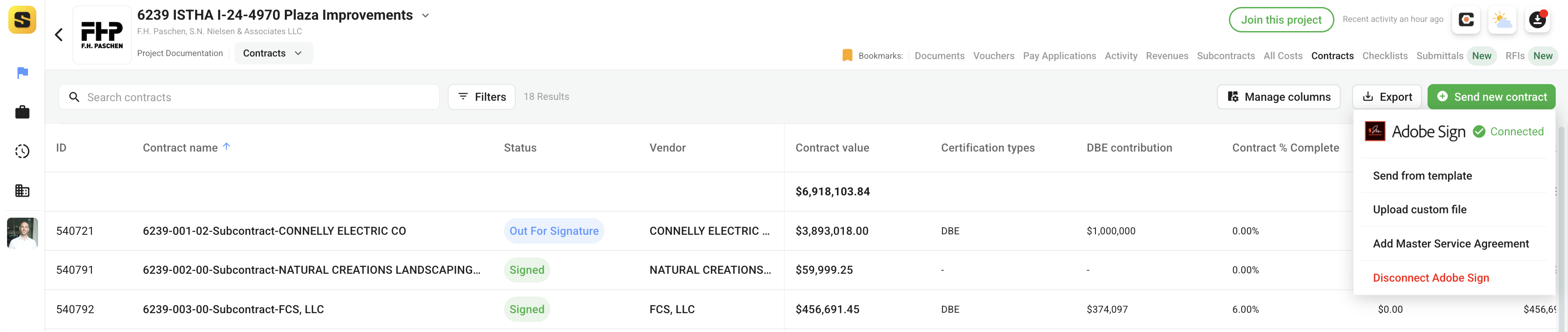
At the top right of the project contracts tab, you will see the 'Send new contract' button. From this menu, users will see their Adobe Sign API account link status, and the option to:
- Send From Template - Generating and sending contracts using Site Specs' contract template library (see Company Contract Templates for more info on managing these)
- Upload Custom File - Used when users have generated their contract agreement in some other software (i.e. Microsoft Word, PDF, etc) and would like to upload those files for record/signature.
- Add Master Service Agreement - Pulling in a master vendor service agreement from the company level. These are agreements between your company and a vendor that can be utilized on several projects eliminating the need for redundant project specific agreements for standard service terms and pricing
- 'Disconnect/Connect to Adobe Sign - For users in companies that have Adobe Sign accounts that wish to use our API and send and track agreements for signature
Adding Contract Templates to a Project
At the top of this page users will have the ability to search for their project templates, toggle between Active, Draft, and Archived contract templates, filter templates by agreement type and location, as well as create a new contract template.

In the project contract template table users can see what templates are being utilized as well as how many have been issued to vendors. This allows the project team the ability to monitor usage.
To add more templates to a project, click 'Add Contract Template' and select the company contract template you would like to utilize on the project.
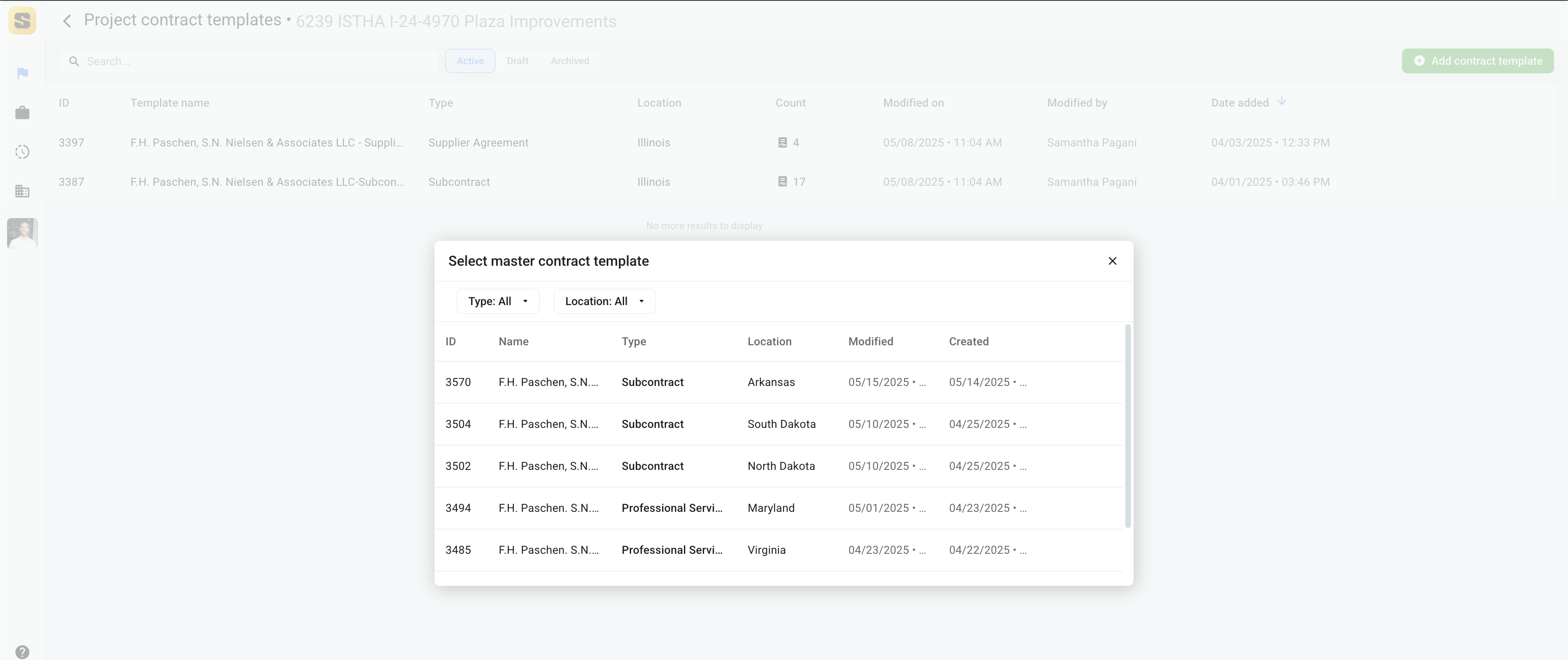
Once a company contract template is selected, the user will be shown the contract template editing view. This is where the user will edit the company template for the project by inputting project specific data. On the left side of the screen users will notice the Table of Contents listing the sections of the contract template.
Cover Page
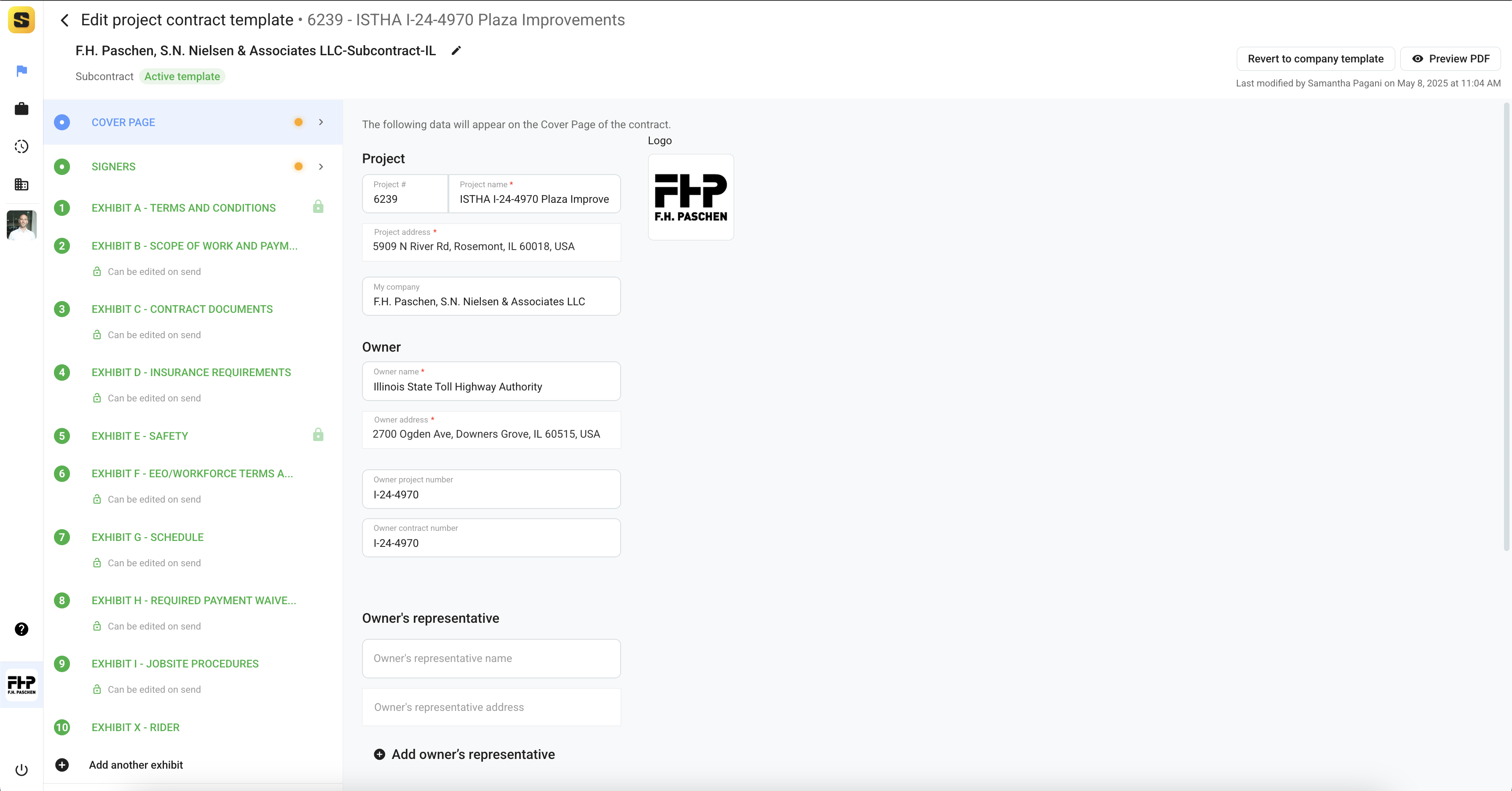
Users will notice that information from the project's 'Project Info' page will auto-populate fields on the Cover Page if included in the Project Info page. This is to save users time and eliminate human error when composing the project contract templates.
NOTE: It is always recommended users complete the Project Info page in projects as thoroughly as possible. Completeness and accuracy will save your project team time and eliminate error on project documents generated in Site Specs.
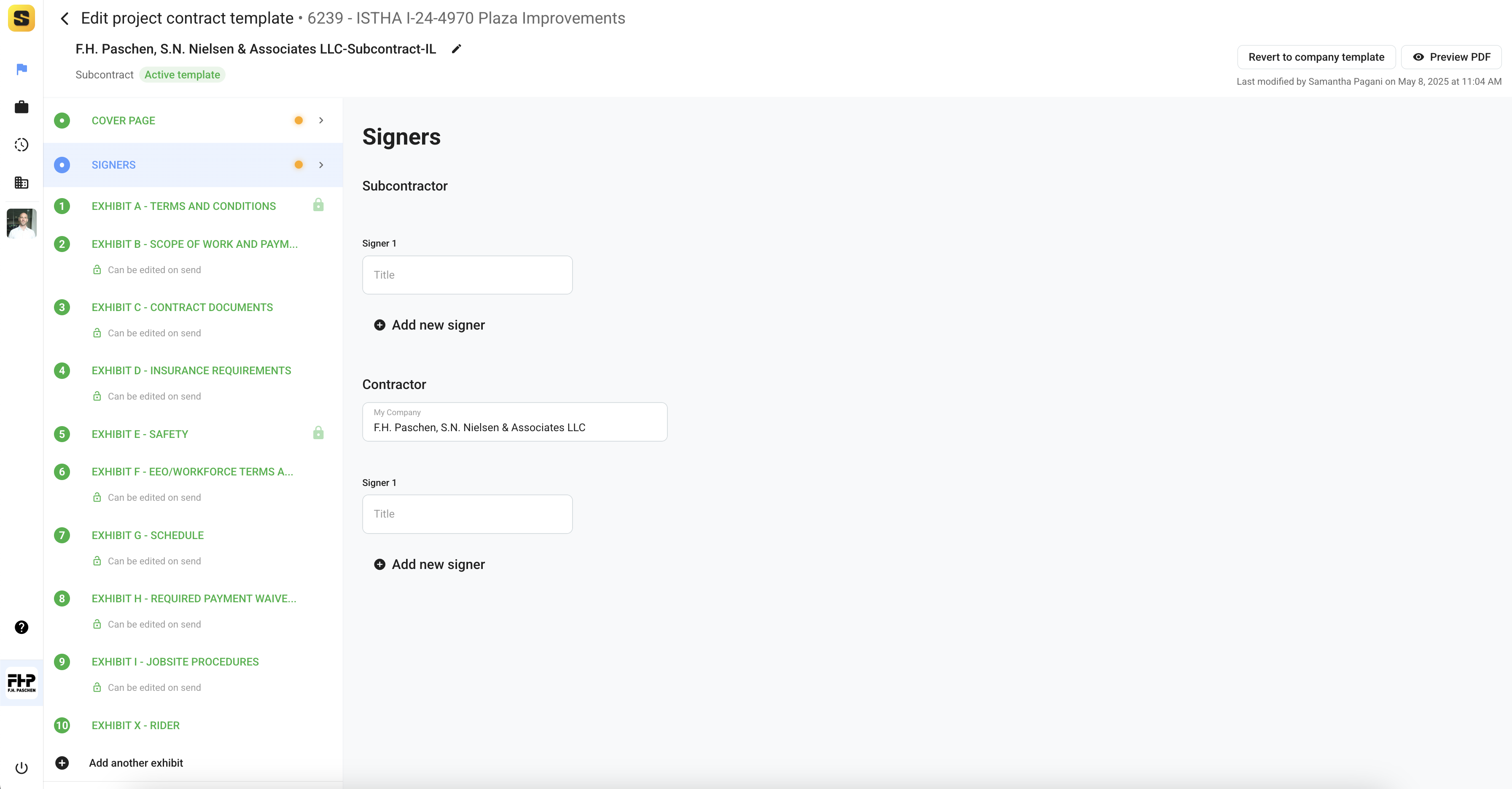
Signers
The Signers page allows users to list the signers required on the agreement. 'The Contractor' signers are representatives from your company while the 'Subcontractor' signers are representatives of the vendor receiving the contract for signature.
Exhibits
Your company will come up with their preferred standard operating procedure around what exhibits they use, how they are named, etc. Site Specs simply provides companies the interface and ability to customize these to their needs. Please contact your company's legal department and executives for guidance on how exhibits within contract templates should be utilized.
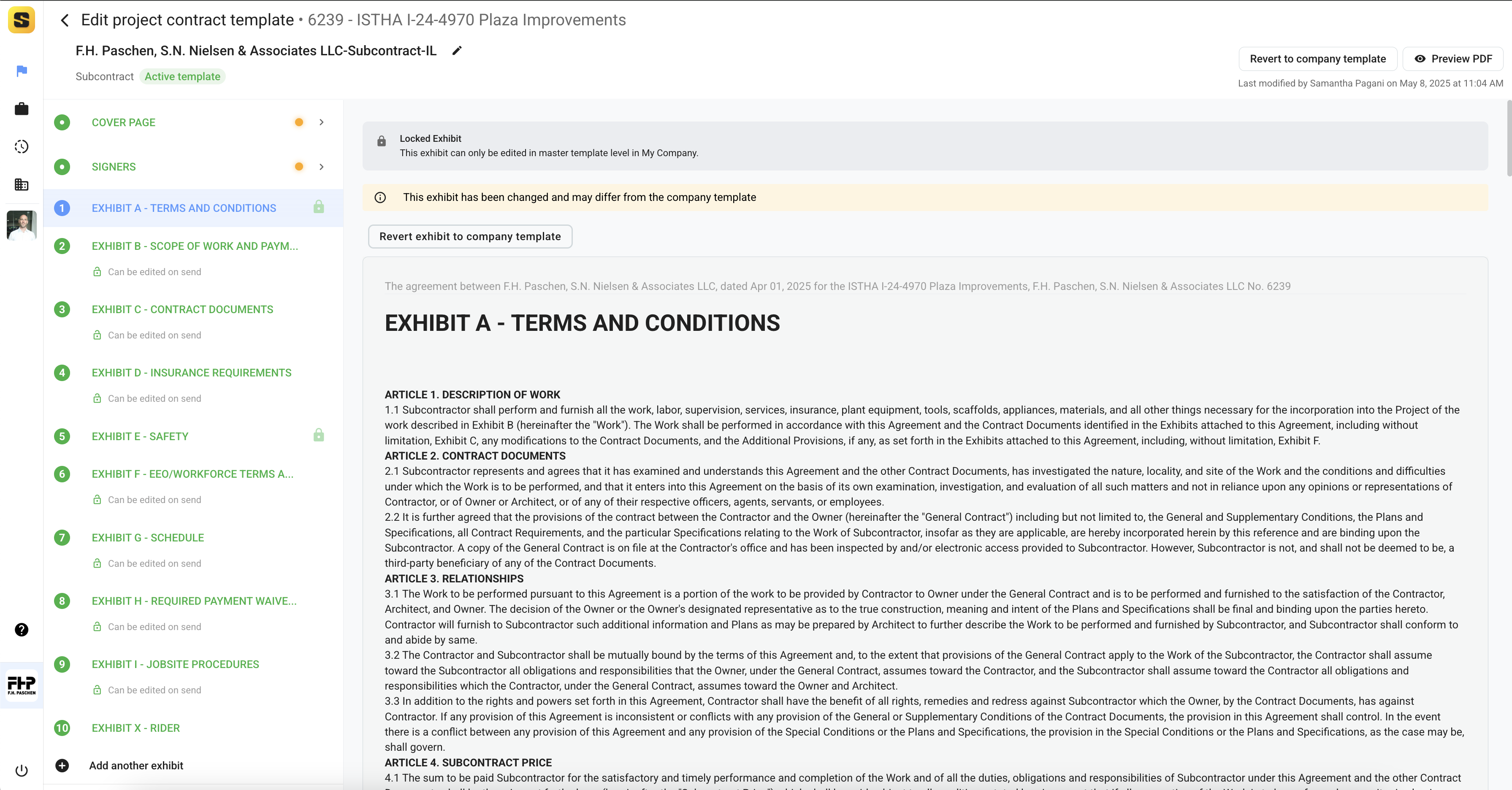
Companies have the ability to Lock/Unlock exhibits to prevent/enable users downstream to make changes/modify them while creating vendor-specific agreements.
LOCK/UNLOCK Exhibit Considerations
- If the company template exhibit is locked at the company level, no one on the project can edit the exhibit
- If an exhibit is Unlocked in the company template, the user(s) managing the project template have the ability to Lock/Unlock the exhibit for users sending contracts -- If the project exhibit is Unlocked, users sending contracts can edit the contents of the exhibit -- If the project exhibit is Locked, users sending contracts can not edit the contents of the exhibit
This security measure is used to help companies standardize and enforce their companies standard terms & conditions and protect them from being edited by maybe inexperienced employees at the project level.
Exhibit B - Scope of Work and Schedule of Values
This exhibit is special because it contains tables for users to itemize scope of work inclusions/exclusions as well as categorize and itemize payment schedules (schedule of values). Remember that this exhibit's data typically is specific to each vendor and is normally blank when creating a project template as all data in project templates are included on all subsequent contracts issued from them.
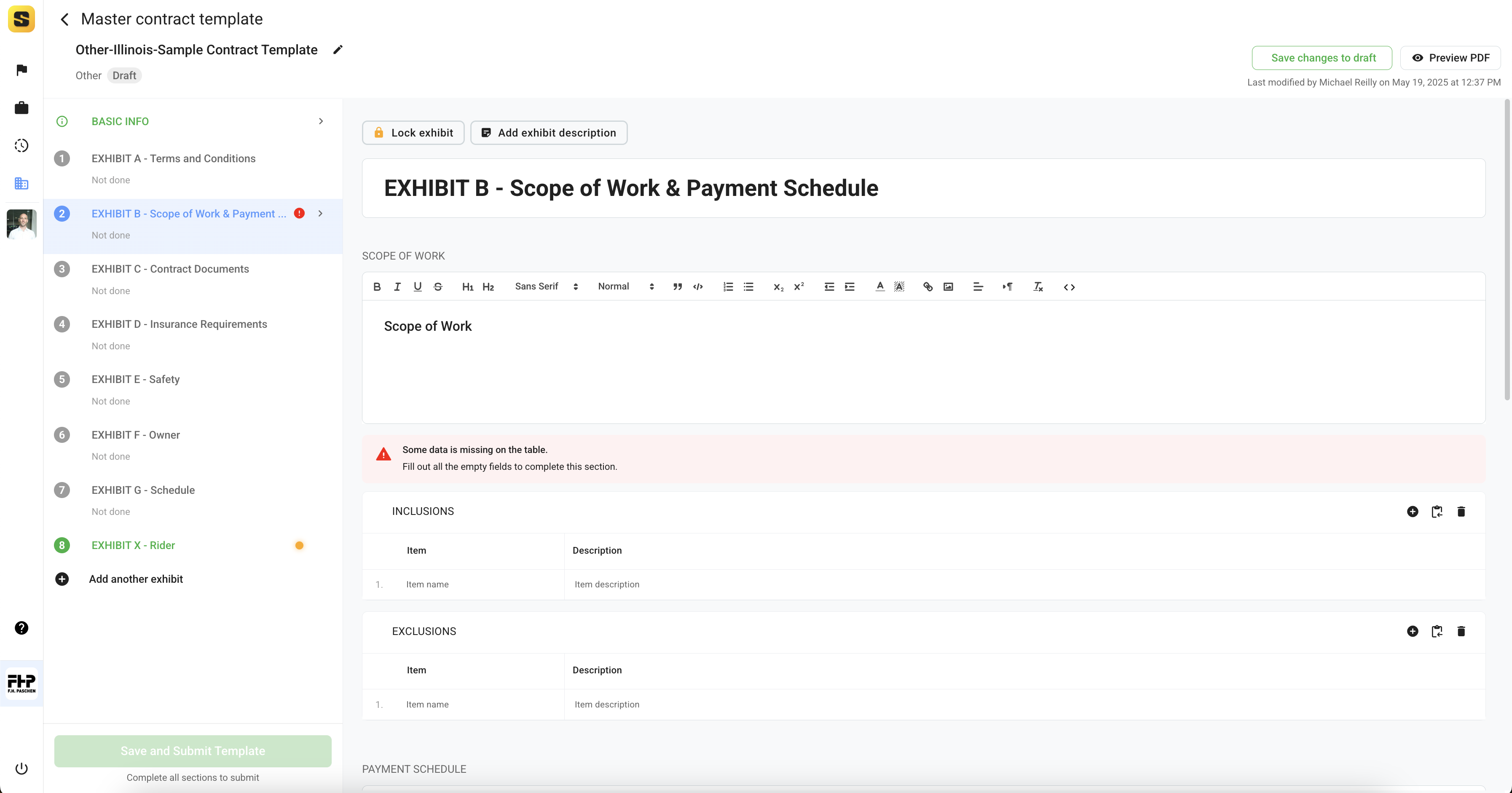
The Payment Schedule (Schedule of Values) has several categories line items can be included in. The purpose of this is to help clearly organize the schedule of values and identify which line items are included in the base bid contract value and/or unit prices allowances, liquidated damages, alternates, etc.
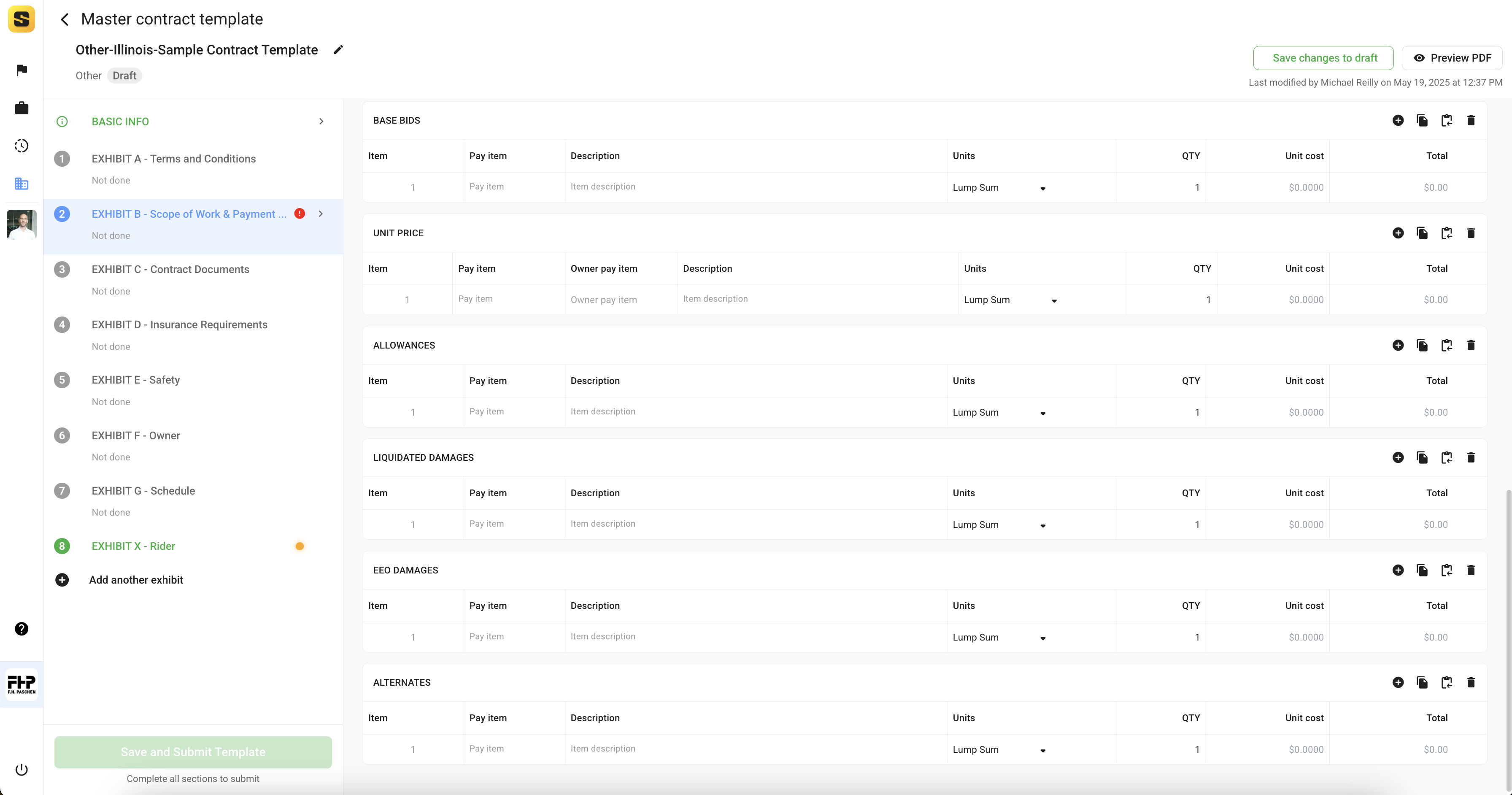
Above each table of SOW and SOVs users will notice the following options for populating the data.
Managing Tables in Scope of Work and Schedule of Values
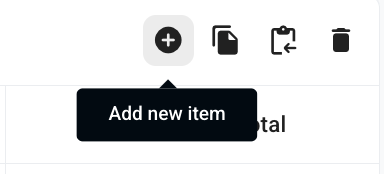
- Add new line item is used when users want to manually add a new line item.
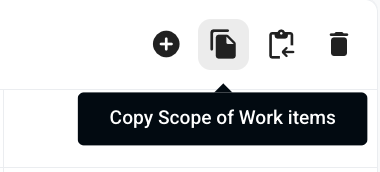
- Copy From Scope of Work is used in the Payment Schedules (Schedules of Value) when users want to add all the scope of work line items into the payment schedule and assign unit pricing. This is a time saver when the SOW is itemized the same as the SOV.
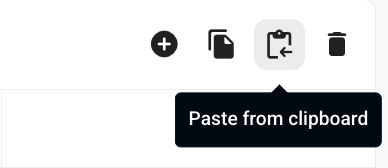
- Paste from clipboard is useful when a user has a csv/excel file with the schedule of values they would like to import without having to add each line and type in data individually.
NOTE: When pasting from clipboard users should have the exact same column headers ordered exactly the same as seen in Site Specs tables. Copy ONLY the data you want imported, NOT including the headers.
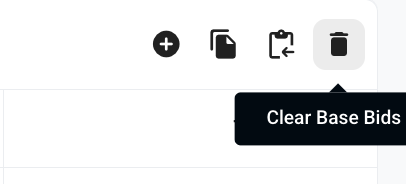
- This clears data that may have been erroneous pasted in the table to save time so users can start again without having to manually remove each pasted line individually.
Exhibit X - Rider
The Exhibit X is a special exhibit that is used to itemize exceptions to the contract. This exhibit is ofter used when subcontractors/suppliers do not accept your company's standard terms and conditions and instead of 'red-lining' a document, users can list all agreed upon changes as 'Rider Clauses' in the Exhibit X - Rider at the end of the agreement. This allows project managers a quick and easy way to find any vendor-specific considerations that differ from the companies standard terms.
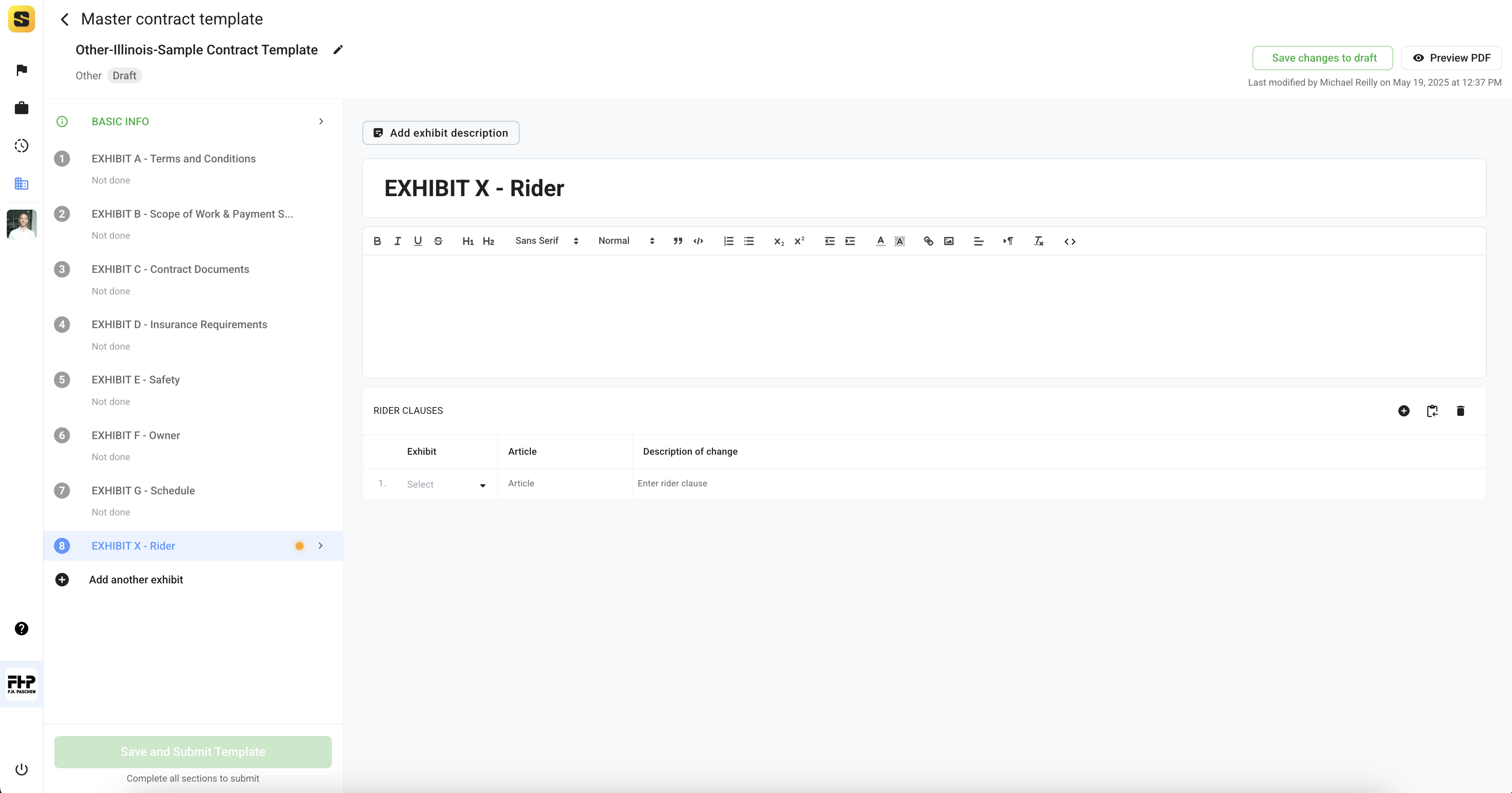
This exhibit is intended for vendor specific clauses associated to each vendor specifically and are often project specific. This exhibit will almost always be left blank when creating your project template.
Once users have completed customizing each of their project contract template exhibits, they are encouraged to click 'Preview PDF' to view the resulting PDF document and confirm the formatting and completeness of the company contract template before clicking 'Save and Submit Template'. However, users can always edit and modify the project templates at a later date.
Things to Consider
Project Contract Templates originate from the My Company Contract Templates page. Project templates are the template that will be used for all subsequent agreements sent for that agreement type on the project. Therefore, when editing the project template remember the data you input should NOT be vendor specific as vendor specific data is input at the time of generating a vendor's contract and NOT when creating the project template that will be used for all vendor agreements.
Issues or Questions?
Contact Support at Support@SiteSpecs.io or your legal department with any questions